15 Must-Have GNOME Extensions for Anyone Switching to Linux
October 6, 2026
Switching to a GNOME-based distro — Ubuntu, Fedora, Pop!_OS, Debian — from Windows or macOS? Stock GNOME is clean and fast, but within an hour you’ll reach for something that isn’t there: a clipboard history, snap layouts, a hot corner that shows your windows, dark mode that follows the sun.
These 15 extensions fill those gaps. The list leans toward a Mac-like feel, because I use a Mac at work and wanted my Linux machine to work the same way. I could have installed Zorin OS, which ships a Mac-style layout out of the box, but I went with Ubuntu for its faster updates and much bigger community. A handful of extensions closes the gap anyway.
Before the list: try Handy
If you install one app (not an extension) on Linux, make it Handy — free, open-source voice-to-text that runs entirely offline. Press a shortcut, talk, and the text lands in whatever app you're typing in.
This whole post was dictated with Handy.
TL;DR
| # | Extension | What it does |
|---|---|---|
| 1 | User Themes | Load a custom shell theme (e.g. a macOS look) |
| 2 | Logo Menu | Apple-style menu in the top-left corner |
| 3 | Transparent Top Bar | See-through top bar until a window touches it |
| 4 | Notification Banner Position | Notifications in the top-right, like macOS |
| 5 | Night Theme Switcher | Light by day, dark by night, automatically |
| 6 | Tiling Shell | Snap layouts, like Rectangle or Magnet |
| 7 | AATWS | A far better Alt+Tab, with search |
| 8 | Custom Hot Corners – Extended | Any action on any screen corner |
| 9 | Space Bar | Named workspaces in the top bar |
| 10 | Clipboard Indicator | Clipboard history, like Maccy |
| 11 | Caffeine | Keep the screen awake on demand |
| 12 | Vitals | CPU, temperature and RAM in the top bar |
| 13 | SSH Search Provider Reborn | Type a host name, land in an SSH session |
| 14 | GSConnect | Phone ↔ PC: clipboard, files, notifications |
| 15 | Just Perfection | Tweak the shell and speed up animations |
How to install them
Install Extension Manager, search for the name, click Install. On Ubuntu it’s sudo apt install gnome-shell-extension-manager; on Fedora and everywhere else, get it from Flathub (flatpak install flathub com.mattjakeman.ExtensionManager). Each name above also links to its page on extensions.gnome.org.
Make it look and behave like macOS
1. User Themes — lets GNOME Shell load a custom theme. Pair it with the WhiteSur macOS theme for the top bar, menus and app windows. On older hardware, pick the solid (non-transparent) variant.
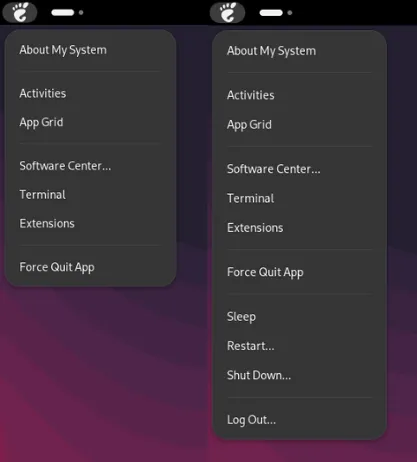
2. Logo Menu — an Apple-style menu in the top-left corner: About My System, Terminal, Force Quit App, Sleep, Restart, Log Out. Muscle memory, restored.
3. Transparent Top Bar — the top bar is see-through on an empty desktop and turns solid the moment a window touches it, just like the macOS menu bar. It’s a plain tint, not blur, so it costs almost nothing.
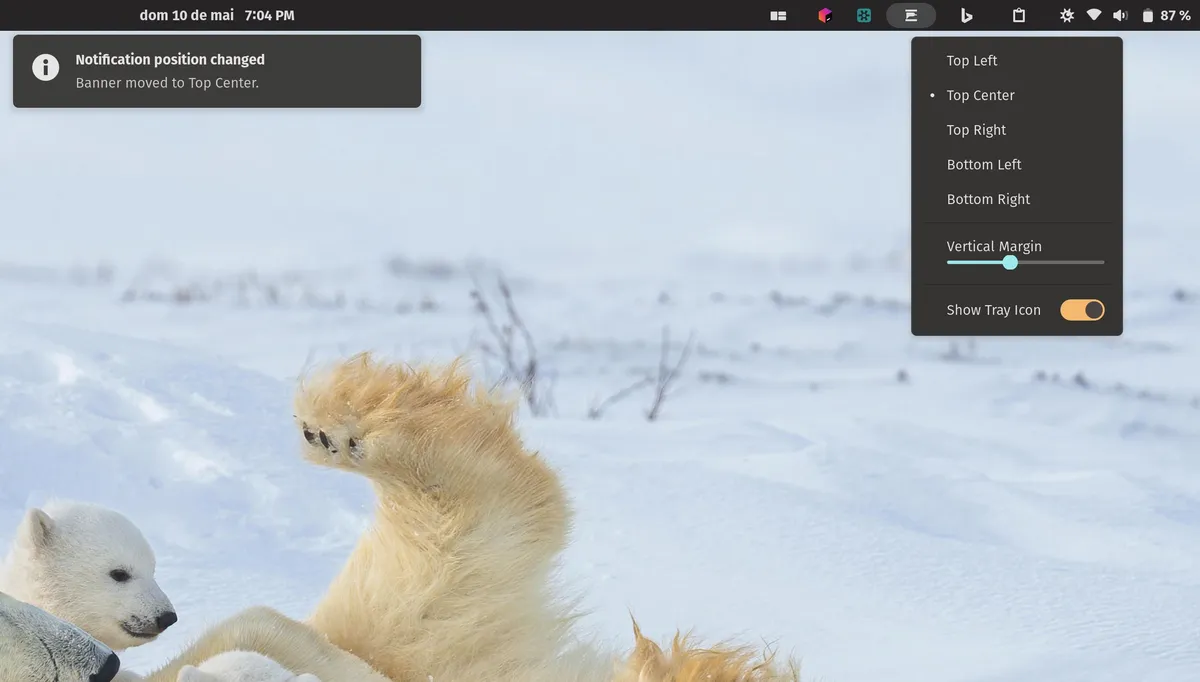
4. Notification Banner Position — GNOME shows notifications at the top-center; this moves them to the top-right, where Mac eyes look for them. Hide its extra top-bar icon in the settings.
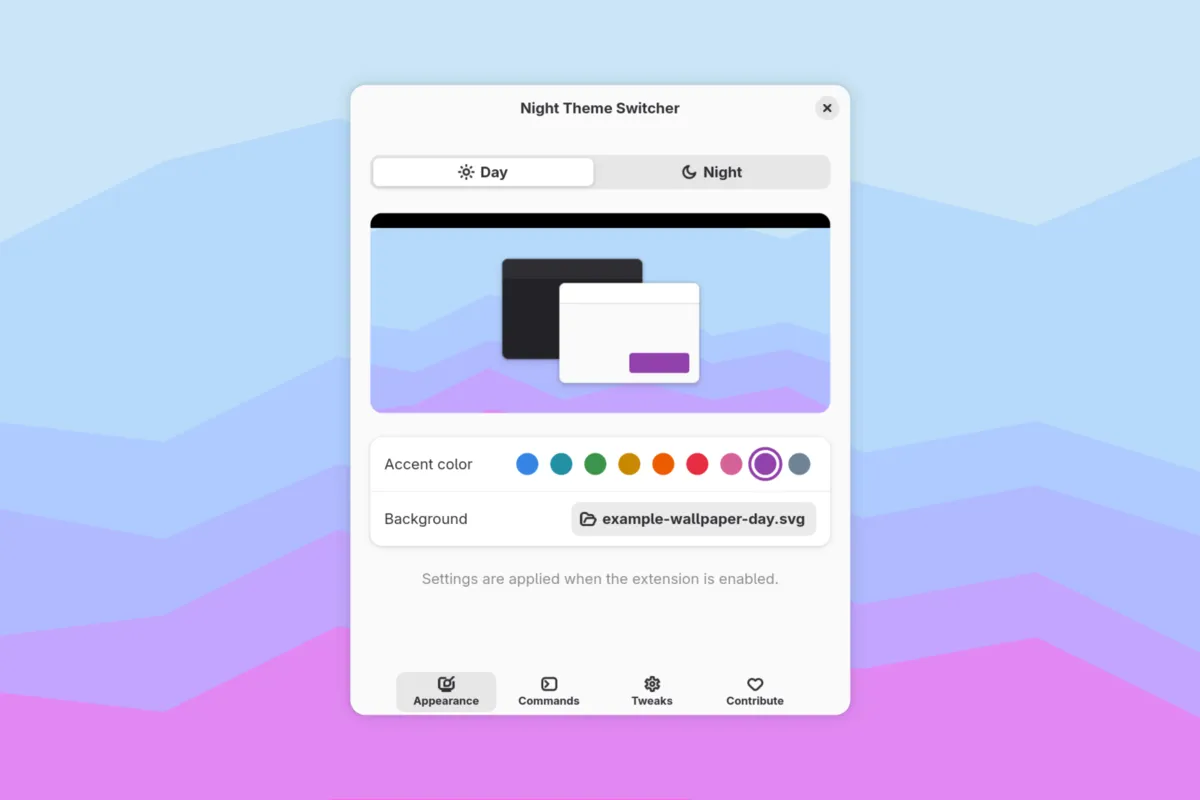
5. Night Theme Switcher — the equivalent of macOS “Auto” appearance: light theme at sunrise, dark at sunset. It can also run your own commands at each switch, so third-party themes like WhiteSur flip too.
Windows and workspaces
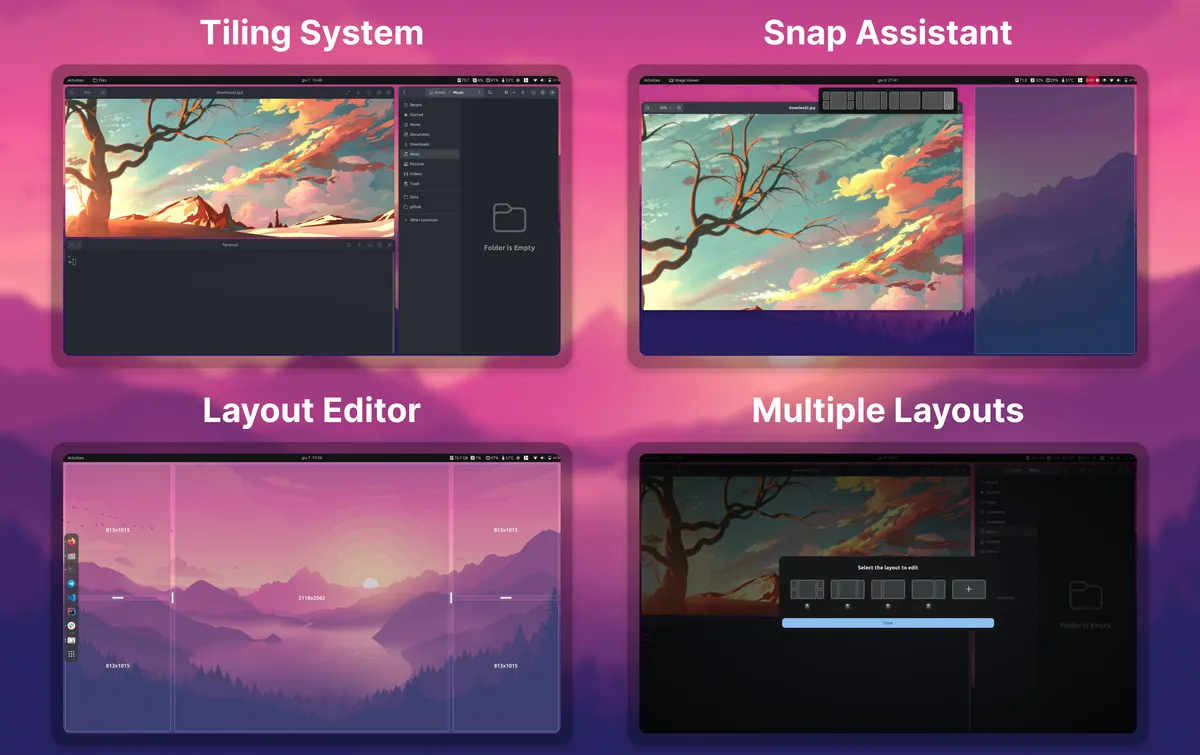
6. Tiling Shell — Rectangle/Magnet-style snap layouts: drag a window and drop it into a zone, or build your own layouts. Two gotchas on Ubuntu: turn off the built-in Tiling Assistant (the two fight over edge snapping), and turn off Tiling Shell’s own Alt+Tab override, or it clashes with the next extension.
7. AATWS — Advanced Alt-Tab Window Switcher — a much better Alt+Tab: type to filter, group by app, preview windows. It can also be triggered from a hot corner (see the next one).
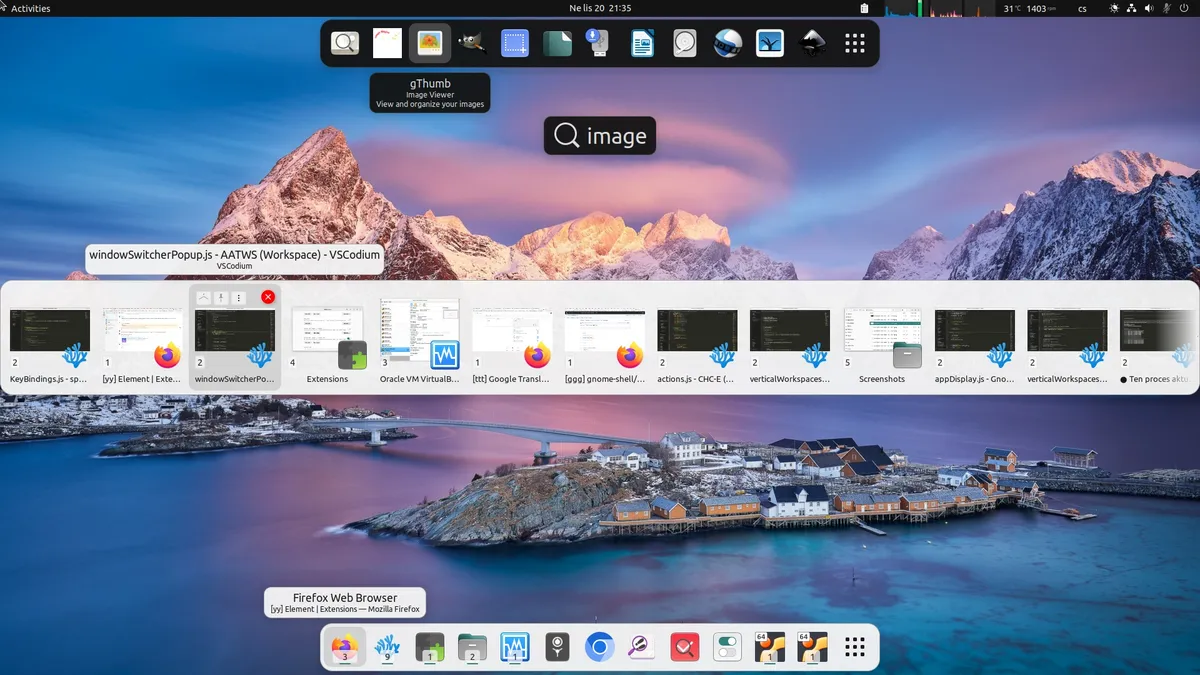
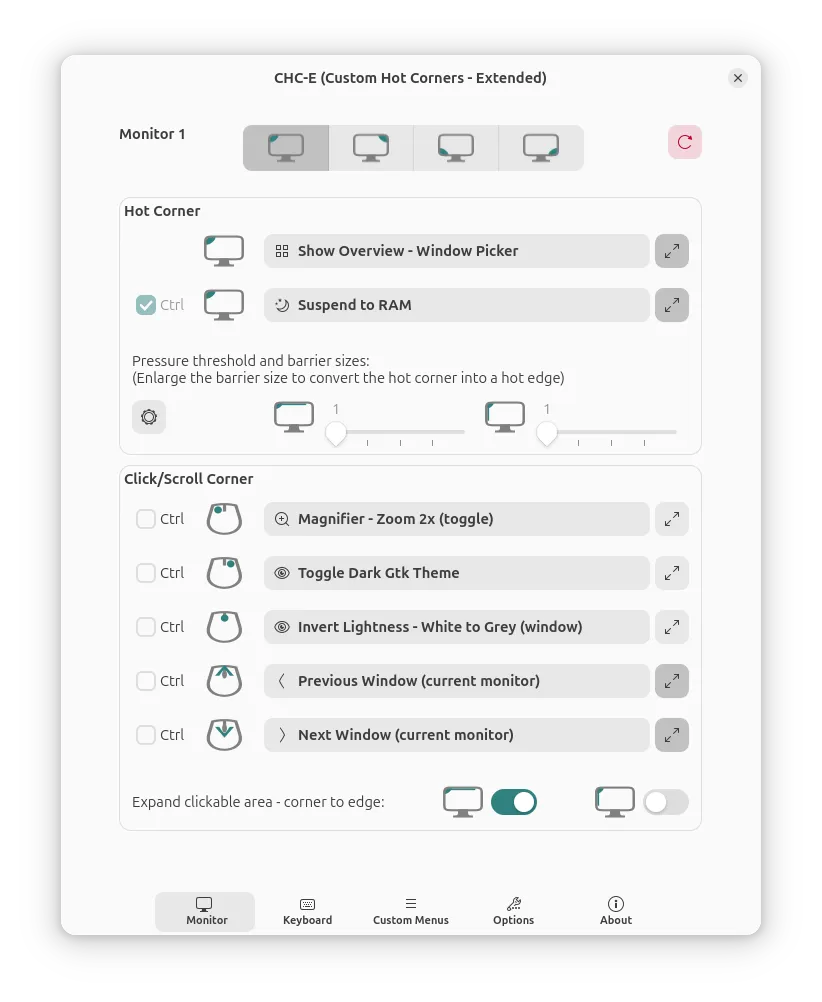
8. Custom Hot Corners — Extended — put any action on any corner. Mine: top-left opens the overview, top-right opens the AATWS switcher grouped by app. That top-right corner is the closest thing to Mission Control I’ve found.
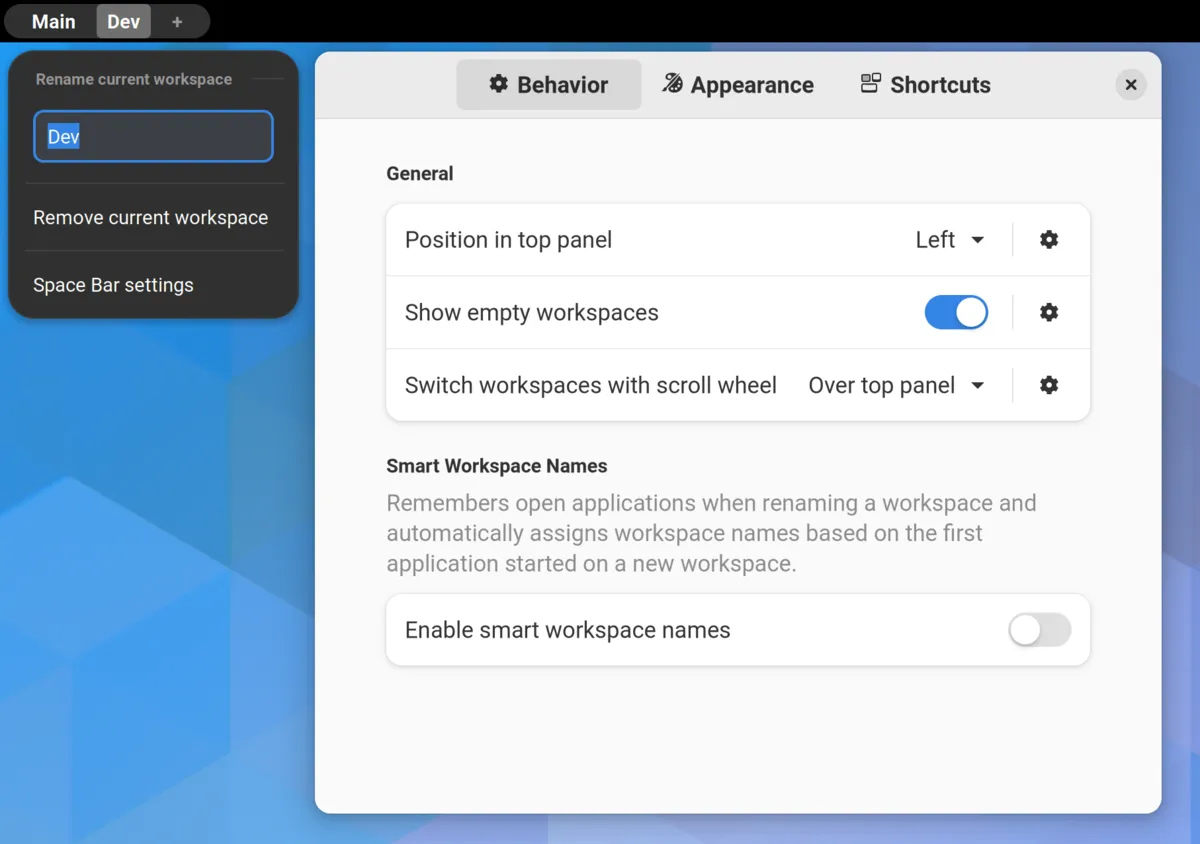
9. Space Bar — replaces the “Activities” button with your workspaces, by name. Right-click to rename. “Mail · Code · Docs” beats remembering which number is which.
Small utilities you’ll miss within an hour
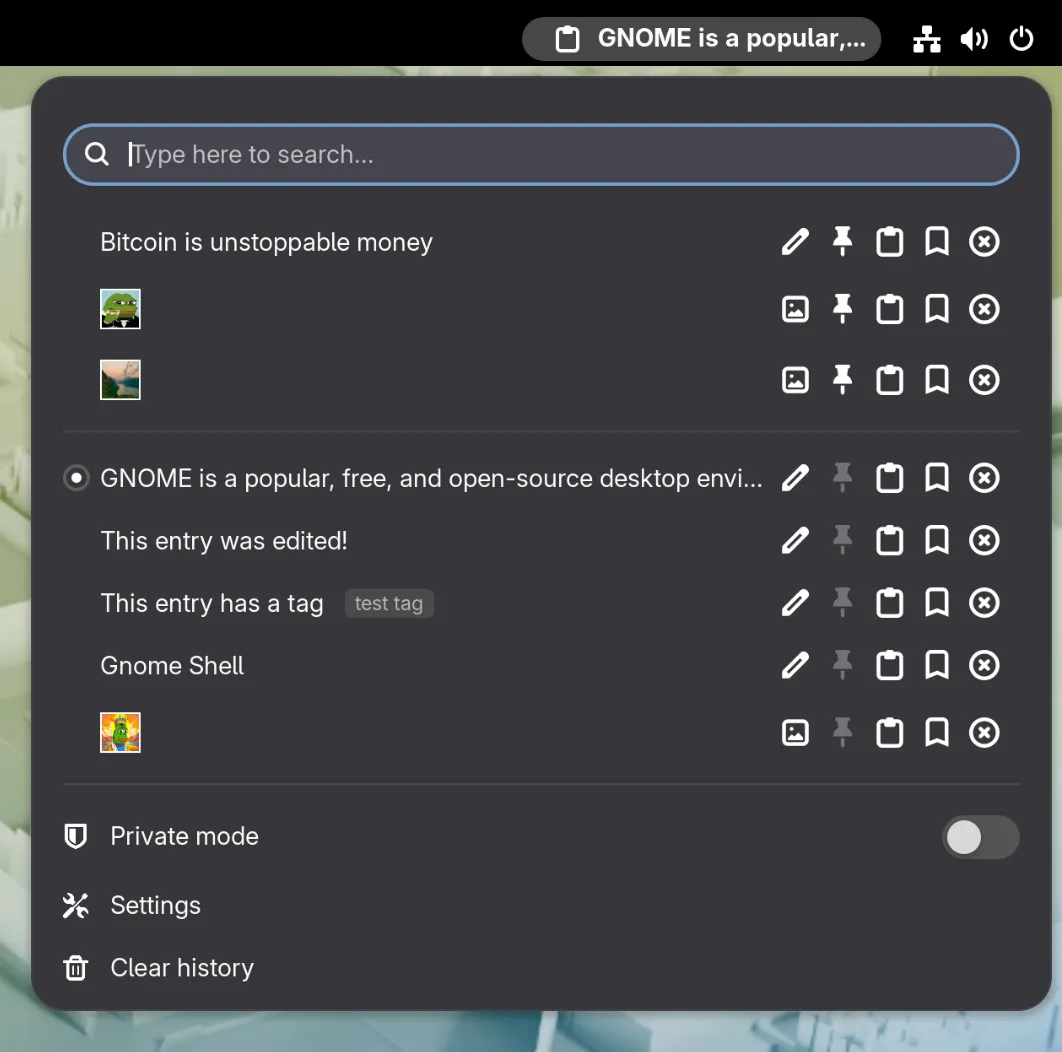
10. Clipboard Indicator — the Maccy replacement. Set a shortcut (I use Ctrl+Shift+H), turn on “open at cursor” and “paste on select”, and the history pops up at the mouse and pastes straight into the app.
11. Caffeine — Amphetamine for Linux. A Quick Settings toggle that stops the screen from sleeping during long reads, downloads or presentations.
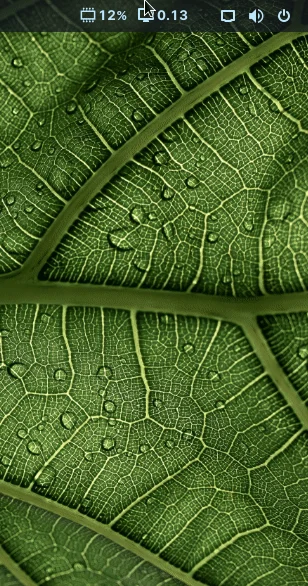
12. Vitals — CPU, temperature, RAM and network speed in the top bar. Pick only the two or three numbers you care about.
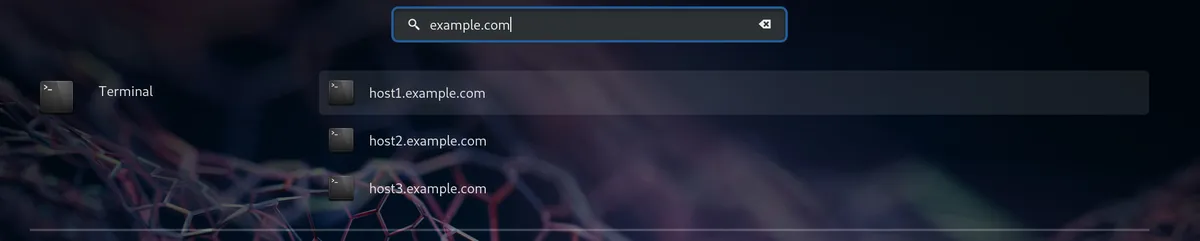
13. SSH Search Provider Reborn — press Super, type a host from ~/.ssh/config, hit Enter, and a terminal opens already connected. Spotlight for servers.
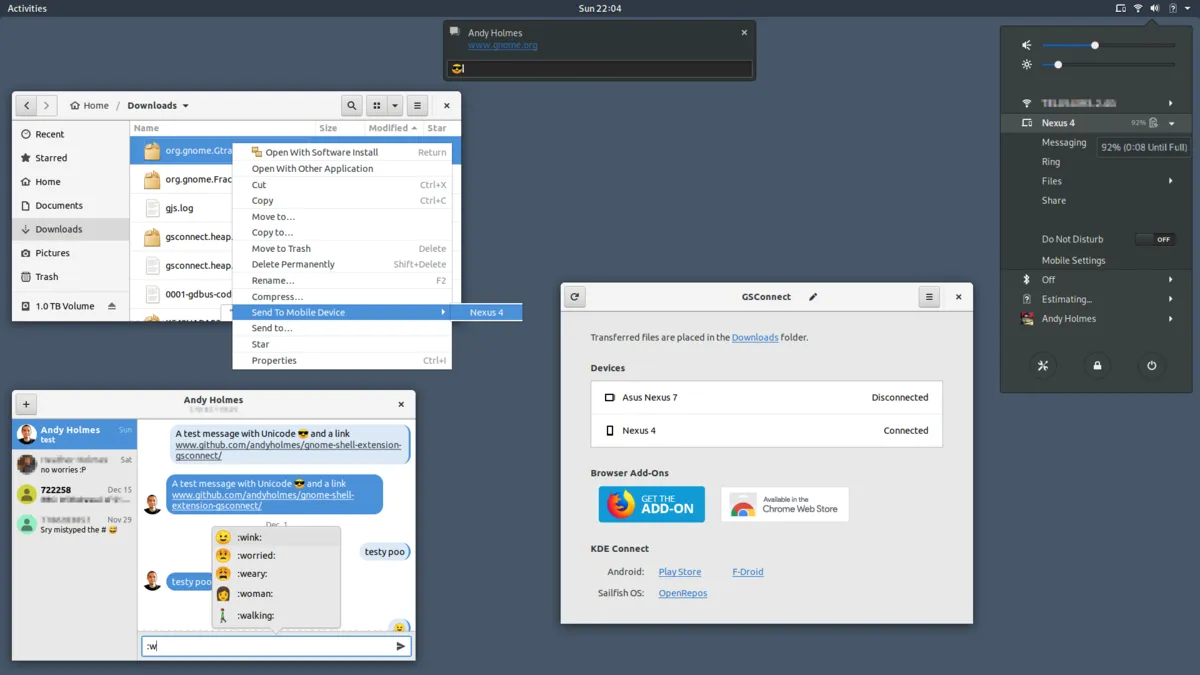
14. GSConnect — the closest thing to Apple’s Continuity for an Android phone: shared clipboard, phone notifications on the desktop, files both ways, even replying to SMS. Pair it with the KDE Connect app on the phone.
Speed
15. Just Perfection — dozens of shell tweaks (hide or show any top-bar element, and more), but the one I’d install it for is animation speed. Set it to “faster” and the whole desktop feels snappier, without anything looking rushed.
What I left out, on purpose
- Blur effects. Beautiful, and expensive — on older or integrated GPUs they cost frames. A solid theme plus a tinted top bar looks nearly as good.
- A dock extension. Ubuntu already ships Ubuntu Dock; move it to the bottom and set it to auto-hide in Settings. On Fedora and other distros without a dock, add Dash to Dock.
- Anything you wouldn’t notice was gone. Every extension is one more thing that can break on the next GNOME release. If you can’t name the habit an extension serves, skip it.
Start with the TL;DR table, install the five that match your oldest habits, and add the rest when you miss them.